 Akanksha Soni
An employee attendance sheet in Excel is a simple way to record working hours, monitor attendance, and organize employee time records. For small businesses, an employee attendance sheet in Excel can be a convenient starting point for managing daily attendance without investing in additional tools.
However, as teams grow and businesses operate across multiple locations, manually updating spreadsheets can become time-consuming. Missing entries, calculation errors, and scattered records can make it difficult to maintain an accurate overview of employee attendance.
In this guide, we’ll explain how an employee attendance sheet in Excel works, what information it should include, how to create one, where to find a free template, and when dedicated attendance tracking software such as BadgeMe can help simplify the process.
Index
What Is an Employee Attendance Sheet in Excel?
An employee attendance sheet in Excel is a spreadsheet used to record when employees start and finish work, how many hours they complete, and whether they are present, absent, or on leave.
Businesses can maintain attendance records using paper registers, Excel spreadsheets, or digital attendance management systems. The right option depends on the size of the workforce, the number of locations, and how much time managers spend maintaining employee records.
An Excel attendance tracker typically organizes employee information into rows and columns, making it easier to review daily attendance and calculate working hours.
For example, a small shop might use a monthly spreadsheet to record staff shifts, while a company with several branches may need a more centralized solution to manage attendance across its workforce.
What Information Should an Employee Attendance Sheet Include?
A useful employee attendance sheet in Excel should contain the information needed to monitor employee working time consistently.
Here are the essential fields to consider:
- Employee name: Identifies the person whose attendance is being recorded.
- Date: Specifies the day of work and the reporting period.
- Clock-in time: Records when the employee starts working.
- Clock-out time: Records when the employee finishes working.
- Break duration: Accounts for breaks according to company policy.
- Total working hours: Shows the time worked after accounting for applicable breaks.
- Overtime: Records additional working hours when relevant.
- Attendance status: Identifies presence, absence, or approved leave.
- Notes or supervisor verification: Provides context for corrections or unusual attendance entries.
Including these fields helps businesses organize their records and review working hours more easily. Companies should also establish clear procedures for correcting errors and protecting employee information.
How to Create an Employee Attendance Sheet in Excel
Creating an employee attendance sheet in Excel does not require advanced spreadsheet skills. Follow these steps to build a simple monthly record.
1. Create Your Spreadsheet
Open Excel and create a new workbook. Add a title containing the employee attendance record and the relevant month and year.
For a monthly tracker, you can create a separate worksheet for each month or maintain a single workbook with clearly organized monthly tabs.
2. Add the Required Columns
Create columns for the employee’s name, date, clock-in time, clock-out time, break duration, total hours worked, and attendance status.
If several employees use the same spreadsheet, assign each person a separate row for every working day. This structure makes your employee attendance sheet in Excel easier to sort and filter.
3. Enter Daily Attendance Information
Record the relevant clock-in and clock-out times and the duration of breaks. Employees or authorized managers can update the information according to your company’s process.
Consistent time formats are important. For example, use a format such as 09:00 for a 9 a.m. start and 17:30 for a 5:30 p.m. finish.
4. Calculate Working Hours
Excel allows businesses to calculate employee working hours and daily or monthly totals. Managers should ensure that clock-in times, clock-out times, and break durations are recorded correctly to maintain accurate attendance records.
For example, if an employee starts at 09:00, finishes at 17:30, and takes a 30-minute break, the total working time is eight hours.
If the clock-in time is in cell C2, the clock-out time is in D2, and the break duration is in E2 as an Excel time value, use this formula:
=(D2-C2-E2)*24
Format the result as a number to display the total hours. Overnight shifts may require an adjusted formula.
For additional guidance, consult Microsoft’s official resource on calculating the difference between two times in Excel.
5. Review and Save the Records
Check entries regularly for missing times, incorrect calculations, and duplicated records. Restrict access to authorized people and maintain appropriate backups.
An employee attendance sheet in Excel can simplify recordkeeping, but accuracy still depends on the quality of the information entered.
Free Employee Attendance Sheet in Excel Template
A ready-made employee attendance sheet in Excel template can help businesses get started without building a spreadsheet from scratch.
A practical template should include:
- Employee names and dates
- Daily clock-in and clock-out times
- Break durations
- Total working hours
- Attendance and absence records
- Monthly summaries
You can customize your employee attendance sheet in Excel to suit your team’s working arrangements and reporting requirements.
For example, a retail store can use a monthly attendance tracker to record staff shifts, while a small office can use the same structure to monitor employee working hours and absences.
Tip: Create a copy of your original template before making changes. This allows you to reuse the same structure for future months while keeping previous records organized.
Businesses that want to improve their spreadsheet skills can also explore Microsoft Excel training and support resources for guidance on formulas, tables, and data organization.
Ready to Move Beyond Excel?
Discover BadgeMeBenefits of Using Excel for Employee Attendance
An employee attendance sheet in Excel remains a useful option for businesses that need a straightforward way to organize attendance information.
Low Initial Cost
Businesses that already have access to Excel can create a basic tracker without purchasing a separate attendance management system.
Flexible Customization
Columns, worksheets, filters, and calculations can be adjusted to suit different schedules and reporting requirements.
Easy Record Review
Managers can review attendance entries, organize working hours, and maintain monthly information in one workbook.
Useful for Small Teams
For a small workforce with straightforward schedules, an Excel attendance tracker may provide enough visibility into attendance without introducing a more complex process.
Despite these benefits, businesses should consider how much time they spend updating records and whether manual tracking remains practical as their operations expand.
Common Challenges of Tracking Attendance Manually
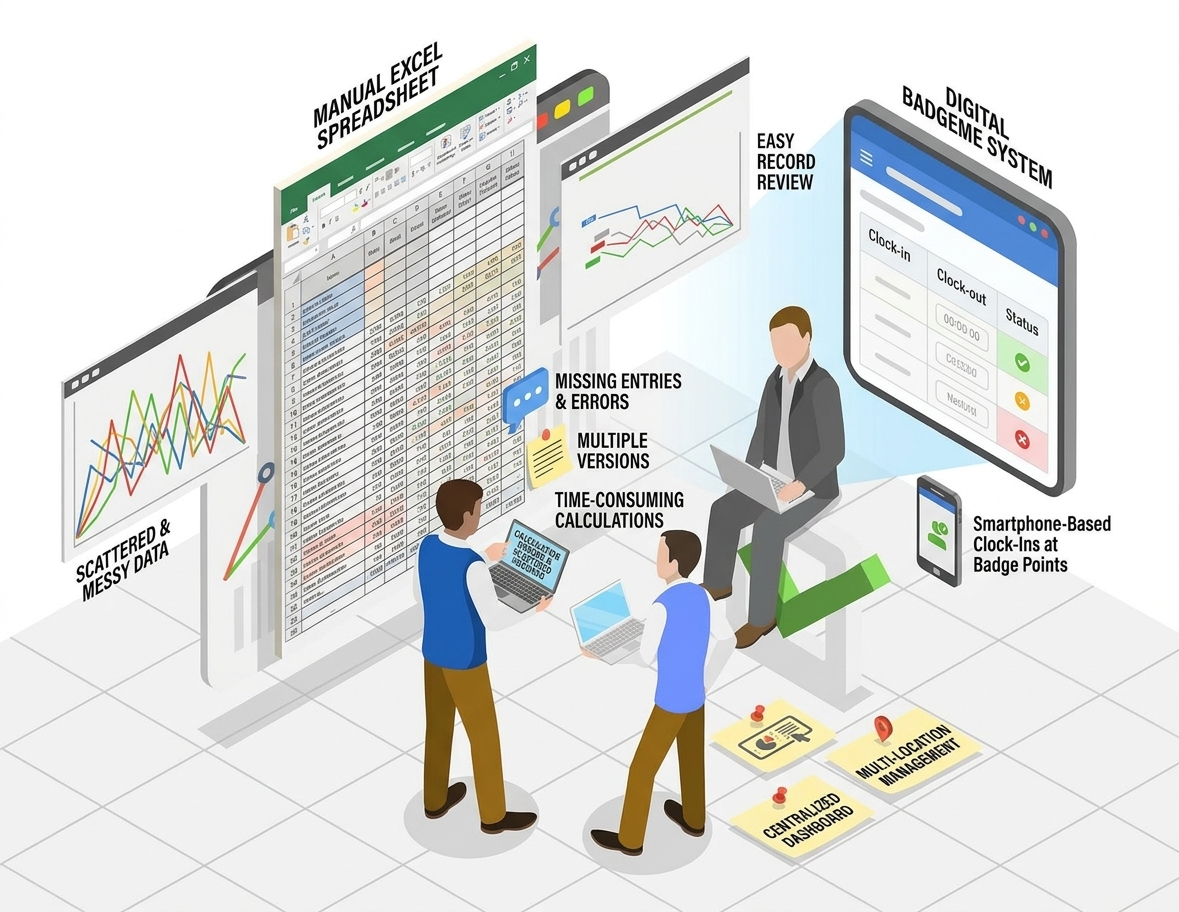
An employee attendance sheet in Excel can work well when the number of employees is manageable. However, manual tracking may become more difficult when several people need to update records or managers oversee multiple locations.
Common challenges include:
Missing or Incorrect Entries
Employees may forget to record their working hours, while manual data entry can introduce errors. These mistakes can affect monthly totals and create additional work for managers.
Time-Consuming Calculations
Managers may need to review entries, correct mistakes, and calculate totals before preparing timesheets or payroll-related information.
Multiple Spreadsheet Versions
When different managers maintain separate files, consolidating attendance information can become difficult. It may also be harder to identify which version contains the latest updates.
Limited Real-Time Visibility
A spreadsheet generally reflects the information last entered or saved. Managers may not have an up-to-date view of attendance throughout the working day.
Difficult Multi-Location Management
Businesses operating across several branches may find it challenging to collect and compare records from different teams. Maintaining consistent formats and attendance procedures can require additional coordination.
Businesses should also consider how employee attendance information is stored and accessed. The European Commission’s overview of data protection under the GDPR explains key data protection principles relevant to handling personal information.
These issues do not make Excel unsuitable for every business. They simply indicate when a more centralized approach may be worth considering.
Excel Attendance Sheets vs. Digital Attendance Tracking Software
Both spreadsheets and attendance management software help businesses organize working-time information, but they work differently.
| Feature | Employee Attendance Sheet in Excel | Digital Attendance Software |
|---|---|---|
| Recording attendance | Usually entered manually | Employees can clock in and out digitally |
| Working-hour calculations | Managed through spreadsheet calculations | Supported by system features |
| Attendance visibility | Depends on spreadsheet updates | May provide a real-time dashboard |
| Multiple locations | Records may need manual consolidation | Can centralize attendance across locations |
| Reports | Often prepared or customized manually | Reports can be generated from recorded data |
| Setup | Familiar spreadsheet environment | Requires account setup and configuration |
| Best suited for | Basic attendance records | Teams needing more centralized tracking |
The most appropriate solution depends on your team’s needs. A small business with a few employees and fixed schedules may be comfortable using Excel. A growing business that manages multiple branches, changing shifts, or employees working at different sites may benefit from digital attendance tracking.
An employee attendance sheet in Excel provides flexibility and a familiar working environment, while dedicated software can help centralize attendance records and reduce repetitive administrative tasks.
Simplify Attendance Across Every Location
Talk to Our TeamHow BadgeMe Simplifies Employee Attendance Tracking
When spreadsheets begin taking too much time to maintain, BadgeMe offers a mobile-based alternative for businesses that want a more centralized way to manage employee working hours and attendance records.
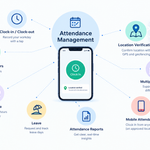
BadgeMe is a mobile attendance management system that helps businesses record working hours, manage attendance information, track time off, and review employee time records through a centralized dashboard.
Instead of relying entirely on manually updated spreadsheets, businesses can use BadgeMe to support their daily attendance processes.
Smartphone-Based Clock-Ins
Employees can clock in and out using their smartphones at authorized Badge Points. This supports location-based attendance recording without requiring traditional physical time clocks.
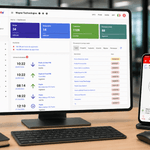
Centralized Attendance Dashboard
Managers can review available attendance information, working hours, late arrivals, absences, and active shifts from one dashboard.
Multi-Location Attendance Management
Businesses with multiple branches or work locations can manage attendance information centrally instead of consolidating separate spreadsheets manually.
Attendance Reports
BadgeMe provides attendance reports that help managers organize timesheets and prepare payroll-related information.
A Practical Solution for Growing Teams
By bringing attendance records together in one system, BadgeMe can help reduce repetitive administrative work and simplify attendance management as business needs evolve.
BadgeMe uses authorized Badge Points for location-based clock-ins. It is not designed as a live employee-tracking system.
Ready to simplify employee attendance?
Explore BadgeMe to see how smartphone clock-ins, centralized attendance records, and multi-location support can help your business move beyond manual spreadsheets.
Contact BadgeMe to learn more.
When Should You Move Beyond Excel?
There is no universal employee count at which a business must stop using Excel. The decision depends on how complex its attendance processes have become.
Consider a digital attendance solution if:
- Managers spend too much time correcting attendance records.
- Employees frequently forget to update spreadsheets.
- The company operates across multiple locations.
- Preparing monthly timesheets requires repeated manual work.
- Managers need more timely visibility into employee attendance.
- The business wants a consistent process for recording working hours.
Reviewing these factors can help you decide whether your existing employee attendance sheet in Excel remains sufficient or whether a dedicated system could make attendance management easier.
Frequently Asked Questions
How do I create an employee attendance sheet in Excel?
To create an employee attendance sheet in Excel, add columns for employee names, dates, clock-in and clock-out times, breaks, total working hours, and attendance status. Record attendance consistently and review the entries regularly.
Can Excel automatically calculate employee working hours?
Yes. Excel can calculate working hours and daily or monthly totals. Breaks, overnight shifts, and specific working-time rules may require additional adjustments.
Is an employee attendance sheet in Excel suitable for small businesses?
Yes. An employee attendance sheet in Excel can be suitable for small businesses with straightforward attendance requirements. As the team grows or operations become more complex, maintaining records manually may require additional effort.
What is the difference between an attendance sheet and an attendance management system?
An attendance sheet is a document used to record employee attendance. An attendance management system provides dedicated tools for recording clock-ins, organizing attendance data, reviewing working hours, and generating reports.
How can businesses track employee attendance across multiple locations?
Businesses can collect records from individual spreadsheets, but consolidating information may require manual work. A digital attendance management system such as BadgeMe can help centralize attendance records across supported locations.
Can employees clock in using their smartphones?
Yes. With BadgeMe, employees can use their smartphones to clock in and out at authorized Badge Points, supporting location-based attendance recording.
Is there a free employee attendance sheet in Excel?
Businesses can create their own spreadsheet or customize a ready-made employee attendance sheet in Excel template. A basic template can include employee names, attendance dates, working hours, breaks, and monthly summaries.
When should a business switch from Excel to attendance software?
A business should consider dedicated attendance software when manual data entry, multiple spreadsheets, attendance corrections, or multi-location reporting begin taking too much time. The decision depends on operational complexity rather than a fixed employee count.
Make Employee Attendance Easier with BadgeMe
Contact BadgeMe Today